
Private, in your browser
Your .gltf or .glb is converted on your own computer and never uploaded.
Turn a .gltf or .glb from Sketchfab, Blender or a game engine into a binary STL, scaled to millimeters and standing upright on the build plate.
Converted in your browser. Files are never uploaded.
Inspect the file first, or convert it for another program.
Drop a .gltf with its data embedded, or a .glb. You can add several files and convert them in one go.
glTF is measured in meters and each meter becomes 1000 mm. If the size on the plate is off, turn on Resize longest side.
Save a binary STL, Z-up and resting on the plate. A scene with several meshes can become one STL or one STL per object.
The same model before and after: the shape stays, the rendering data does not.
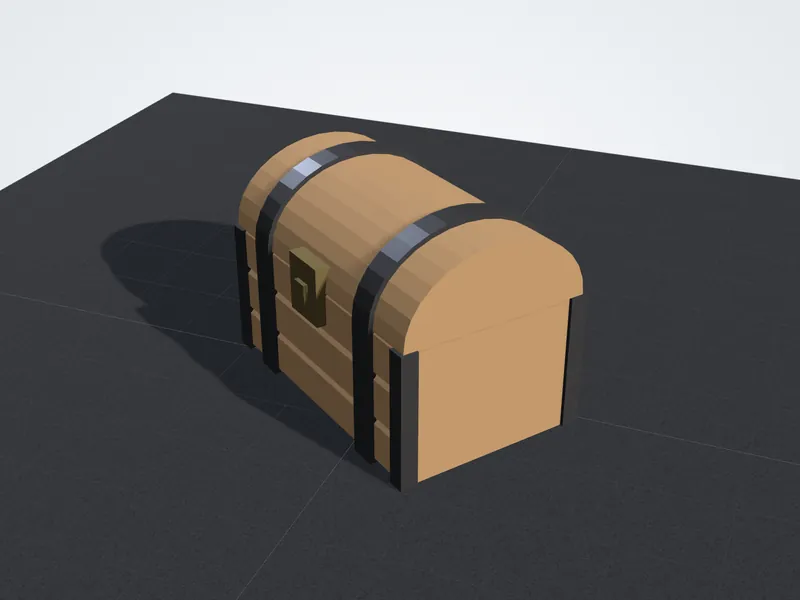
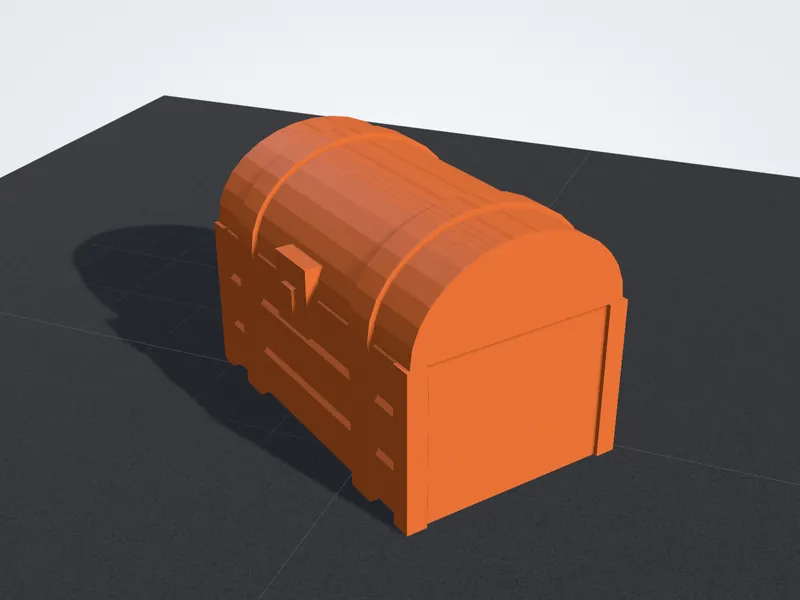
Built for models that come from screens and need to go to a printer.
Your .gltf or .glb is converted on your own computer and never uploaded.
Meters become millimeters and Y-up becomes Z-up, with the model resting on the plate.
Merge the whole scene into a single STL, or download a ZIP with one STL for each mesh.
Set the longest side in millimeters when a model arrives life size or far too small.
glTF describes a scene for real-time rendering. A slicer only needs the outer surface, so the shape and size come through and the rendering data stays behind.
A glTF can convert cleanly and still be hard to print. These are the usual problems with models built for screens.
Compare the size on the plate with your print bed. A life-size asset reads in the thousands of millimeters, so set the longest side before you download.
Scaling down thins every detail. Aim for walls of about 0.8 mm or more on FDM, and thicken capes, blades and fingers in Blender if needed.
Single-sided planes for hair, leaves or cloth leave holes. Open the file in the GLB viewer to count open edges before you print.
The converter puts the lowest point on the plate. Characters standing on small feet print better with a base disc or supports.
Units, axes, file types and how to make a screen model printable.
glTF was designed to deliver 3D scenes to screens: game engines, web viewers and AR. It stores meshes together with PBR materials, textures, animation and a node tree, all in meters with Y pointing up. STL is far older and far simpler. It is a plain list of triangles with no units, no color and no names, and slicers read its numbers as millimeters with Z pointing up.
OBJ sits in between. It keeps UVs and normals and can point to a separate .mtl material file, but like STL it stores no unit. For printing, the differences that matter are the unit and the up axis, and the converter handles both.
Units
Up axis
Color
Objects
Animation
The glTF specification fixes the unit at one meter, while STL has no unit at all and every slicer assumes millimeters. Copy the numbers across unchanged and a 50 mm figurine shrinks to 0.05 mm, too small to see on the plate. The converter multiplies every coordinate by 1000, so the model keeps its real size.
That only helps when the model was built at a sensible size. Game assets are often life size, and models from AI generators often arrive one or two units tall, so check the size readout before you download. The table shows what to expect.
Desk-sized prop
AI generated model
Life-size game character
Exported from mm, unscaled
glTF puts Y up and the front of the model toward +Z. Slicers, CAD programs and STL files put Z up, so without a correction your model would lie on its back on the build plate. The converter rotates it 90 degrees about the X axis, centers it on the plate and puts its lowest point at Z = 0, so it arrives standing and ready for supports.
Transforms on the glTF nodes, such as a part's position, rotation or scale in the scene, are baked into the triangles first, so every part lands where it sat in the original scene.
Models built for screens only need to look solid from the camera. Hair, leaves, capes and eyelashes are often single planes with no thickness, eyes and clothes are separate shells pushed into the body, and the inside of a mouth may be left open. A slicer cannot fill a surface that has no inside, so these parts print badly or disappear.
Before you slice, check three things. Wall thickness: after resizing, fingers, blades and antennae should be at least about 0.8 mm thick for a 0.4 mm FDM nozzle, which is two extrusion lines. Watertightness: the GLB viewer opens .gltf files and counts open edges; closed shells that overlap are fine, open planes are not. Base: give tall characters a flat base or plan for supports, because a figure balanced on two small feet tips over easily.
A .gltf is a JSON text file. Its triangles live in a binary buffer that is either embedded in the JSON as base64 text or saved next to it as a .bin file, often with a folder of textures. This converter reads one file at a time in your browser, so it opens a self-contained .gltf and any .glb, but not a .gltf whose buffer sits in a separate .bin.
The fix is to bundle the model into one file. In Blender, import the glTF and export it again with Format set to glTF Binary (.glb). On Sketchfab, pick the GLB download instead of the glTF zip. Most glTF tools can save a .glb, which packs the JSON, buffers and textures together.
Answers about files that will not open, size, colors, rigged models and privacy.