
Backlit lithophane preview
Lithophane mode shades the panel by thickness, as if a lamp were behind it.
Turn a JPG or JPEG photo into a lithophane, a relief or a cut-out STL. Live 3D preview, nothing uploaded.
Runs in your browser. Your image is never uploaded.
Make a photo panel, find the right print for a picture, or check the finished STL.
Drop, paste or choose a photo up to 10 MB. Use the largest version you have.
Lithophane, relief or cut-out. Drag the sliders and the 3D preview updates.
Save the STL in millimeters. Lithophanes print standing up, reliefs and cut-outs lie flat.
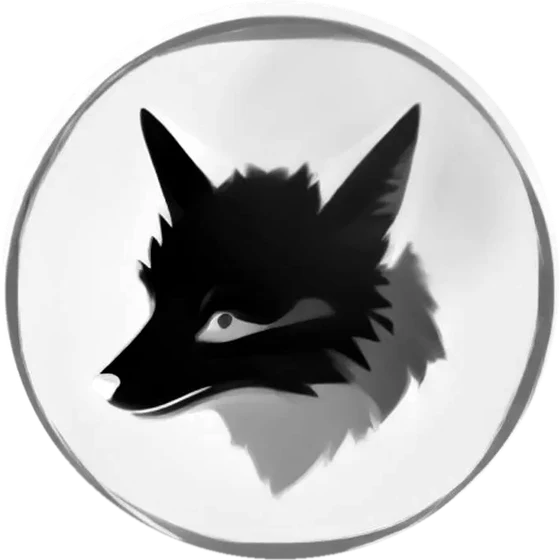
Grayscale artwork with soft shading, and the relief this converter builds from it. Dark fur rises, light areas stay low.
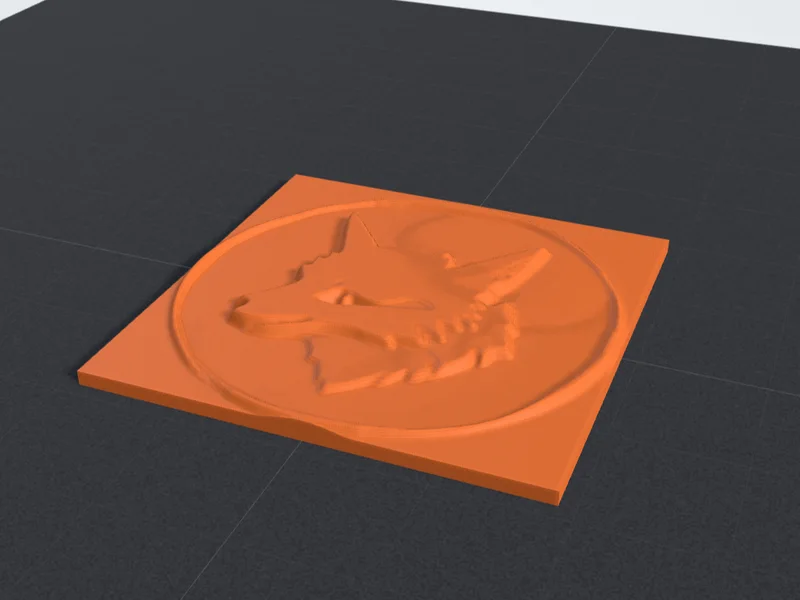
Three ways to print a photo, all from the same upload.
Lithophane mode shades the panel by thickness, as if a lamp were behind it.
Move between lithophane, relief and cut-out without uploading the photo again.
Cut-outs are traced after a light blur, so JPEG noise does not turn into ragged edges.
Read the width, depth, height and grams of PLA as you set the longest side.
Set the lithophane's min and max thickness and choose draft, standard or fine detail.
Your photo is converted in your browser, never uploaded. The preview is free; an STL is 2 credits.
Where to start in each mode.
The default thickness range keeps highlights bright and still blocks light in deep shadows.
Stand the panel on edge with a small brim, in white PLA at 100% infill.
Photo texture prints as bumps at Fine. A coarser grid keeps the surface calmer.
A small print uses little filament and shows contrast or detail problems before a full-size piece.
What a photo can and cannot tell the converter, and how to get a usable JPG.
A JPG stores brightness and color, but not depth and not transparency. The converter turns brightness into height, so it cannot know where the subject ends and the background starts, or how far a nose sticks out. Every mode works around that in its own way.
Lithophanes do not need depth at all: they only need brightness, which is exactly what a photo has. That is why photos make the best lithophanes and only so-so reliefs.
Lithophane is the natural choice for portraits, pets and landscapes: the picture appears when light shines through. Relief works for photos with strong, simple shapes, such as a building against the sky or a high-contrast graphic.
Silhouette suits a subject on a plain background, like a pet photographed against a white wall. Raise the cut-off until the outline is solid, and the background drops away.
Use the largest, least-compressed version you have. Heavy JPEG compression leaves blocky noise that prints as bumps; a photo straight from the camera or phone works far better than one saved from a messaging app.
Crop tightly to the subject before you upload, and brighten very dark photos. If the background matters, a PNG with transparency is the better source.
Answers about photo prints, JPEG files, bumpy reliefs, 3D figures and privacy.